How do I add formulas to my calculator?
Formulas are the logic engine behind your calculator. They take user inputs and automatically compute the results. Numio’s formula editor supports basic math, advanced functions, and conditional logic—giving you full control over how your calculator behaves.
1. Open the Formula Tab
Go to the Formulas tab in the builder.
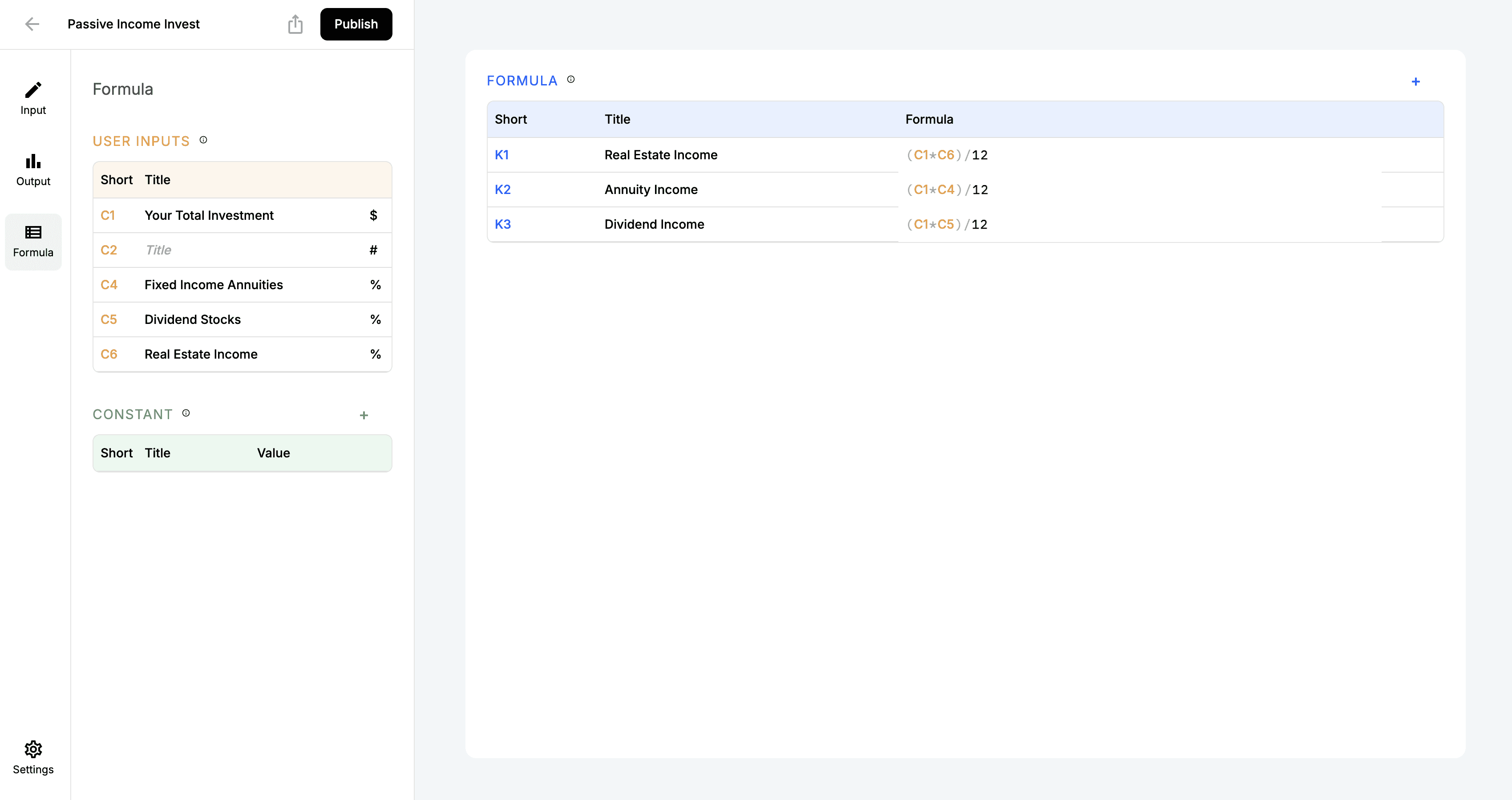
2. Create a New Formula
Click Add Formula
Choose the output field this formula will control
This opens the Formula Editor, which includes:
A variables list
A real-time validation checker
3. Build Your Expression
Each input you create comes with an auto-generated variable name.
Use these variables directly in your formula expression.
4. Preview and Test
Switch to Preview Mode to test your formulas in real time.
Enter example values and confirm the output behaves as expected.
If something’s off, the editor will flag issues like undefined variables or invalid syntax.
How do I add formulas to my calculator?
Written By: Jeremiah Simpson
Last Updated on Nov 19, 2025
Formulas are the logic engine behind your calculator. They take user inputs and automatically compute the results. Numio’s formula editor supports basic math, advanced functions, and conditional logic—giving you full control over how your calculator behaves.
1. Open the Formula Tab
Go to the Formulas tab in the builder.
2. Create a New Formula
Click Add Formula
Choose the output field this formula will control
This opens the Formula Editor, which includes:
A variables list
A real-time validation checker
3. Build Your Expression
Each input you create comes with an auto-generated variable name.
Use these variables directly in your formula expression.
4. Preview and Test
Switch to Preview Mode to test your formulas in real time.
Enter example values and confirm the output behaves as expected.
If something’s off, the editor will flag issues like undefined variables or invalid syntax.