How do I create a quiz?
Creating a quiz in Numio lets you build interactive knowledge checks, onboarding assessments, skill tests, or fun engagement tools for your audience. With flexible question types and customizable scoring, you can build a quiz in just a few minutes.
1. Go to the Quizzes Dashboard
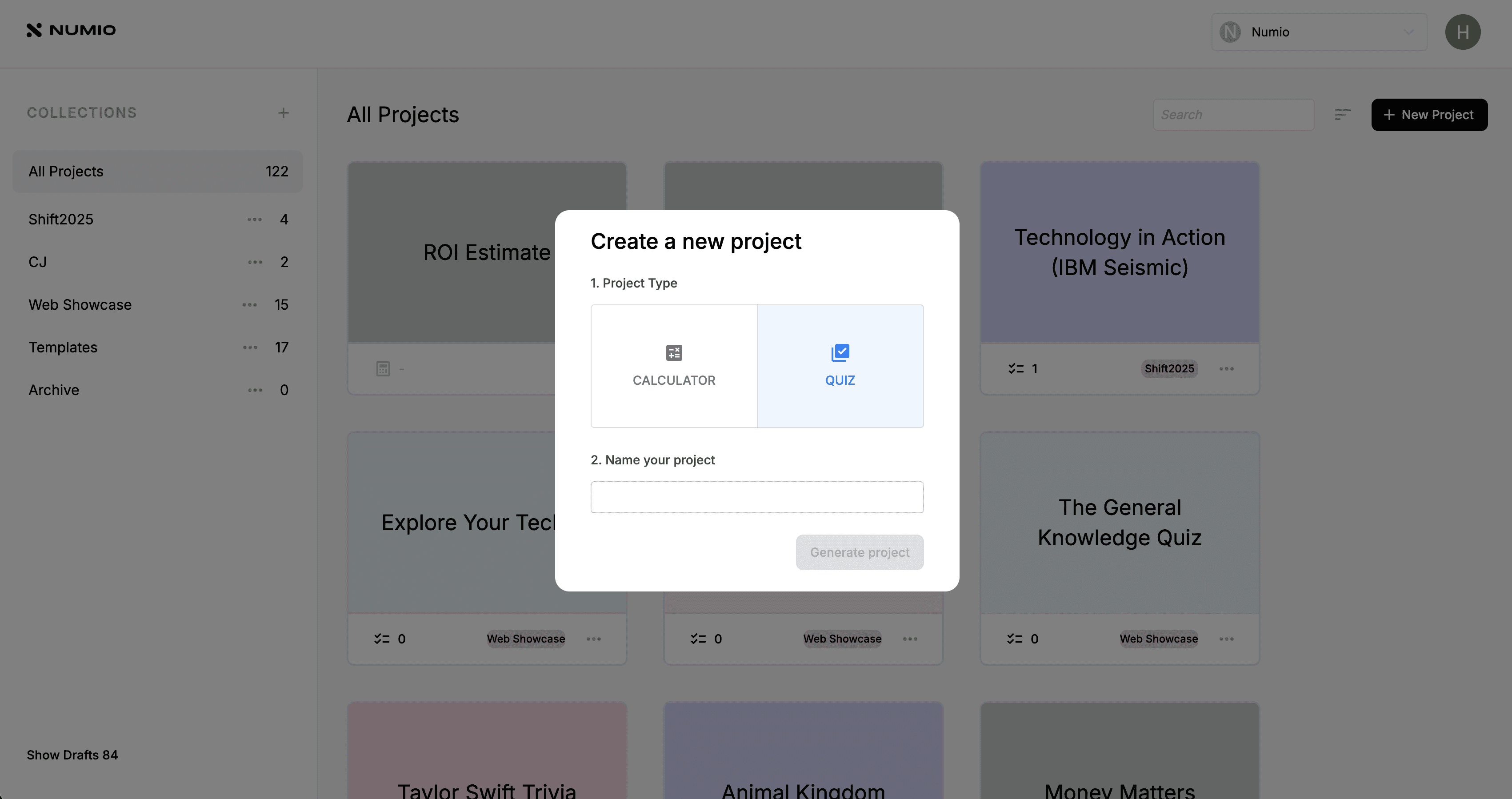
From your Numio dashboard, click New Project.
Select Quiz, then give your project a name — for example, “General Knowledge Check” or “Financial Literacy Quiz.”
2. Create a New Quiz
Click Create Quiz (usually located in the top-right corner).
Enter a quiz title — something descriptive such as:
“How Well Do You Know This Topic?”
“Beginner Knowledge Assessment”
3. Add Your Questions
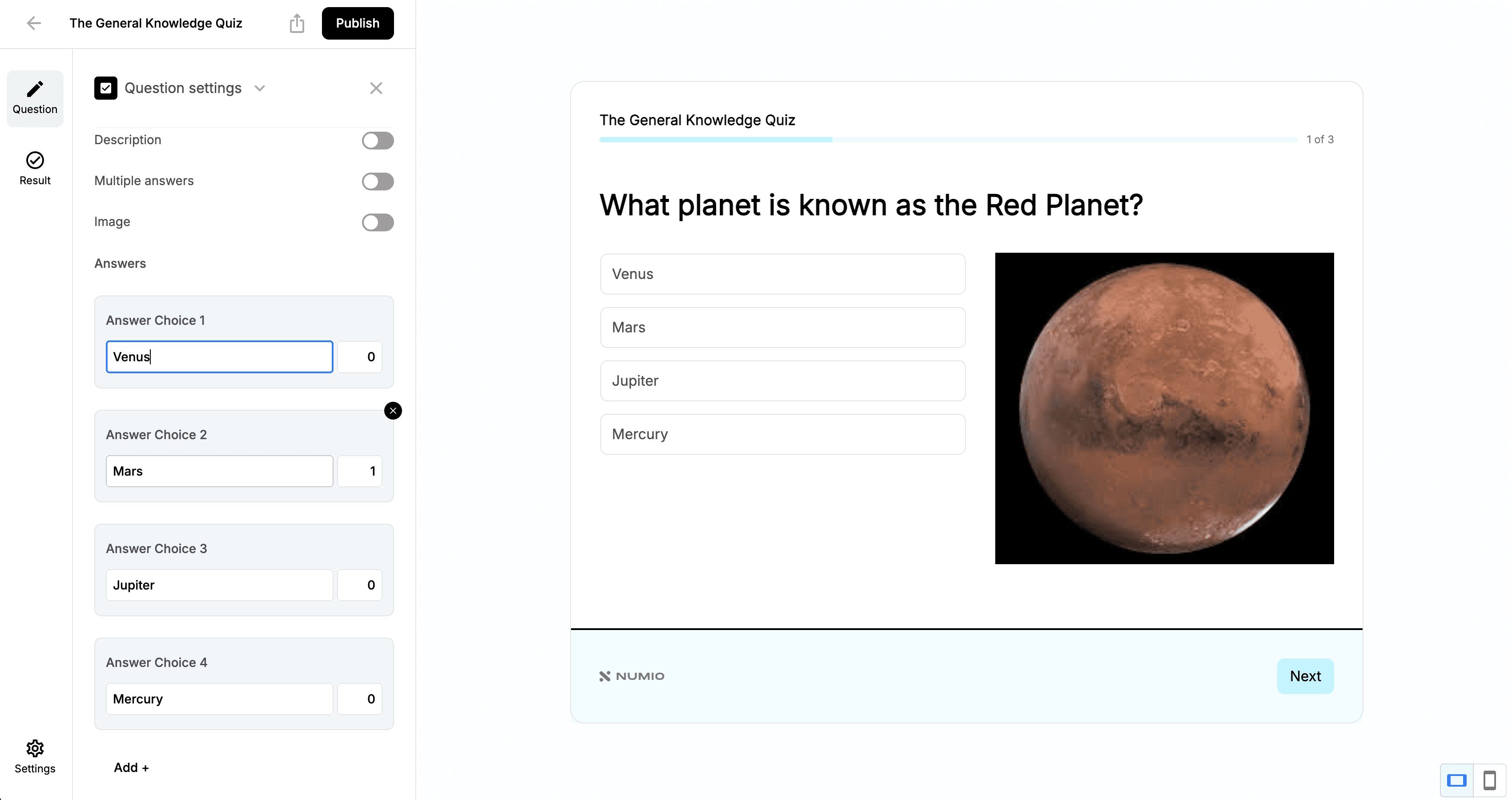
Questions are the core of your quiz. Each question includes the prompt, answer choices, and scoring.
Click Add Question to choose from the available question types:
Multiple Choice (Selection)
Dropdown
True / False
For each question:
Add your answer choices
Assign a score to each answer
Example:
Correct answer = 1
Incorrect answers = 0
Numio uses these assigned values to calculate the quiz taker’s final result.
4. Organize Your Quiz Flow
Use drag-and-drop to structure your quiz the way you want.
You can:
Rearrange question order
Group questions into sections (e.g., “Basics,” “Advanced,” “Bonus Round”)
Add optional descriptions or headers for clarity
5. Save and Publish Your Quiz
When you're ready, click Publish in the top bar.
To share your quiz:
Click the Share icon next to Publish
Copy the direct link, or
Copy the embed code to add the quiz to your website
How do I create a quiz?
Written By: Jeremiah Simpson
Last Updated on Nov 19, 2025
Creating a quiz in Numio lets you build interactive knowledge checks, onboarding assessments, skill tests, or fun engagement tools for your audience. With flexible question types and customizable scoring, you can build a quiz in just a few minutes.
1. Go to the Quizzes Dashboard
From your Numio dashboard, click New Project.
Select Quiz, then give your project a name — for example, “General Knowledge Check” or “Financial Literacy Quiz.”
2. Create a New Quiz
Click Create Quiz (usually located in the top-right corner).
Enter a quiz title — something descriptive such as:
“How Well Do You Know This Topic?”
“Beginner Knowledge Assessment”
3. Add Your Questions
Questions are the core of your quiz. Each question includes the prompt, answer choices, and scoring.
Click Add Question to choose from the available question types:
Multiple Choice (Selection)
Dropdown
True / False
For each question:
Add your answer choices
Assign a score to each answer
Example:
Correct answer = 1
Incorrect answers = 0
Numio uses these assigned values to calculate the quiz taker’s final result.
4. Organize Your Quiz Flow
Use drag-and-drop to structure your quiz the way you want.
You can:
Rearrange question order
Group questions into sections (e.g., “Basics,” “Advanced,” “Bonus Round”)
Add optional descriptions or headers for clarity
5. Save and Publish Your Quiz
When you're ready, click Publish in the top bar.
To share your quiz:
Click the Share icon next to Publish
Copy the direct link, or
Copy the embed code to add the quiz to your website